Souvenir guide · Export
How to export a group trip’s expenses to CSV and a PDF trip book
Get a group trip out of the app before anyone deletes it: the columns a CSV needs, a spreadsheet you can build by hand, and a PDF for people who won’t open one.

A trip ledger is useful during the trip and easy to lose afterwards. Someone wants the numbers in a spreadsheet, someone else wants proof of what the group spent, and the app you used may not hand either over. This guide covers what a good export contains, how to build one by hand when your app has none, how to open a CSV without mangling it, and what Splitwise, Tricount and Souvenir actually export today.
Decide what the export is for
Exports fail when one file is expected to do every job. A group trip usually needs up to three:
- Checking and settling. Who paid what, who shared it, and what each person owes. This needs one row per expense with the payer and each person’s share.
- Keeping a record. What the trip cost, day by day, in the currency paid and in your home currency. This is the spreadsheet you open next year when planning the same route.
- Showing someone else. A partner who wasn’t there, an employer reimbursing part of the trip, or a friend who won’t open a spreadsheet. This wants a readable PDF, not 200 rows.
A CSV (comma-separated values) file serves the first two. A PDF serves the third. If your app gives you only one, you can usually make the other from it.
What a useful trip CSV contains
One row per entry, in date order, with these columns. The first six are essential; the rest are what make the file worth keeping.
| Column | Why it matters |
|---|---|
| Date | Sorting, daily totals and matching to card statements |
| Type | Expense, ATM withdrawal, exchange or settlement payment, so transfers can be filtered out of spending |
| Description | “Night bus to Hue”, not just “Transport” |
| Amount and currency | What the receipt says, before any conversion |
| Amount in home currency | Makes rows comparable and addable |
| Rate | The rate for the day it was spent, so anyone can check the conversion |
| Category | Food, transport, accommodation, fees: the totals people actually ask about |
| Paid by | Whose card or cash covered it |
| One column per traveller | Each person’s share of that row |
| Payment method and notes | Cash or which card; anything the next reader needs |
Two rules make the file honest. First, keep ATM withdrawals and currency exchanges in the file but mark their type: they move money, they are not spending, and a total that includes them counts the same cash twice (the cash guide explains why). Second, keep settlement payments (Ben paying Ada back) as their own type for the same reason. They change balances, not the cost of the trip.
Build the export by hand when the app has none
If your app has no export, or you kept the trip in notes, a spreadsheet with the columns above does the job. Use one sheet per trip and one row per entry.
- Home amount:
=Amount × Rate, with the rate for the purchase date. Look it up once per day and currency, not per row. - Shares: for an equal split among the people who took part, divide the home amount by their number and put it in their columns. For uneven splits, type each person’s share and check that the shares add up to the row’s home amount.
- Paid: a
SUMIFper person over the Paid by column, using home amounts and only rows of type Expense. - Balance: paid minus the sum of that person’s share column. Positive means the group owes them; negative means they owe. The balances always add up to zero, which is a quick check for typing mistakes.
For example, three friends share costs worth €240. Ada paid €180 and Ben €60; Cara paid nothing. Each share is €80, so Ada’s balance is +€100, Ben’s −€20 and Cara’s −€80. Two payments settle it: Ben pays Ada €20 and Cara pays Ada €80. The group expenses guide covers how to get from balances to the fewest payments.
Open a CSV without mangling it
CSV is plain text, which is what makes it portable, and also why spreadsheets sometimes misread it.
- Import, don’t double-click. In Excel use Data → From Text/CSV; in Google Sheets use File → Import; in Numbers, open the file and check the columns. Importing lets you pick the encoding and separators.
- Choose UTF-8. Otherwise ₫, ฿ and € turn into strings of odd characters.
- Watch decimal commas. In locales that write 12,50, a spreadsheet may split amounts at the comma or read them as text. Set the import’s locale or decimal separator to match the file.
- Check the dates. ISO dates (2026-08-14) are unambiguous; 08/09 is not. Confirm the first and last rows land on the right days.
- Keep the original. Save your edited version under a new name, so the raw export stays a faithful copy.
A PDF for people who won’t open a spreadsheet
For the friend, partner or manager who wants the gist, a short PDF beats any CSV. A good one has a cover with the trip’s dates and total, then the days in order: what was bought, where, in the currency paid and in the home currency, with the day’s total. Photos of the places, and of the receipts that matter, make it readable a year later.
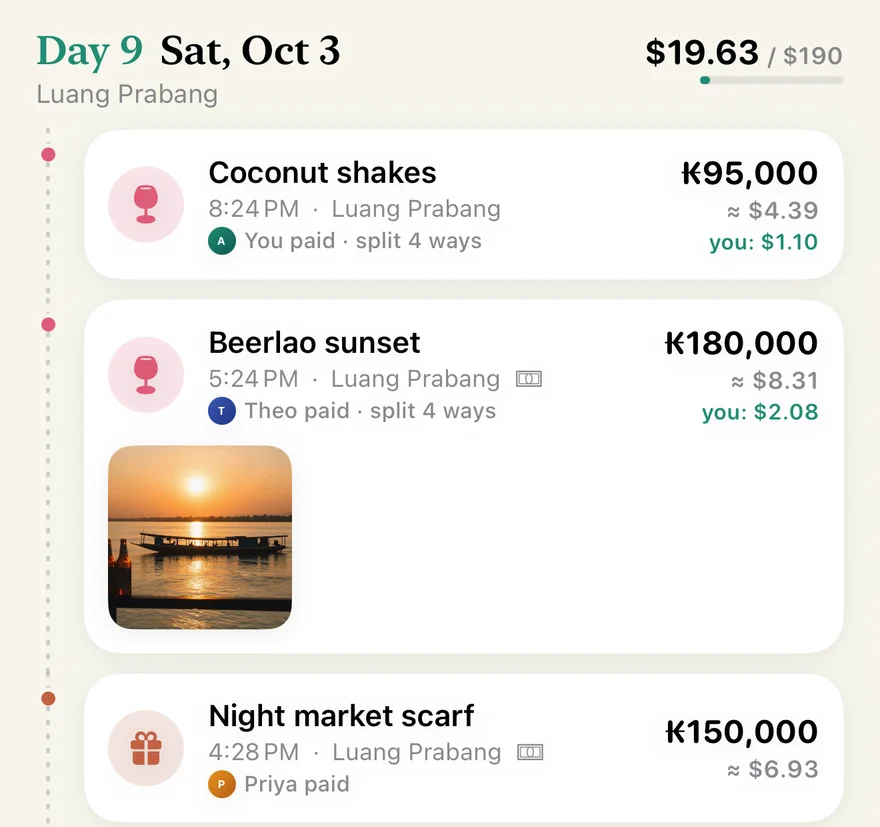
If your app makes no PDF, print the spreadsheet’s summary sheet to PDF, or take screenshots of the balances and the settle-up and put them in one document. Write the date the numbers were taken, so nobody mistakes an old copy for the final one.
What the popular splitting apps export (October 2026)
Export is one of the quieter differences between group-expense apps, so check it before the trip, not after.
- Splitwise describes an “Export Spreadsheet” option for any group or friendship on its website and an Export button in its apps, and that help page doesn’t mention Pro (Splitwise help center, checked 3 October 2026). For trips, the bigger limits are elsewhere: free accounts can add up to 4 expenses a day, and currency conversion is a Pro feature (Splitwise Pro, same date).
- Tricount removed in-app CSV and PDF export when it dropped Premium with its rebuilt app in 2024. Its help center lists the export among the features no longer available and suggests emailing bunq support for a CSV (tricount help center, checked 3 October 2026). Unofficial tools exist that read a shared tricount link. They aren’t made by Tricount, so check what they do with your data before using one.
Features change, so treat this as a snapshot with a date on it.
Export a trip from Souvenir
Souvenir exports each trip from the menu at the top of the trip (⋯ on iPhone, ⋮ on Android):
- Export CSV (“Export as CSV” on Android) writes one row per entry: date, type (expense, ATM withdrawal, exchange or settlement payment), title, category, the amount and currency paid, and the amount in the trip’s home currency, plus city and country. On iPhone the file also has the rate, payment method, card, the card’s foreign-transaction fee, who paid, any ATM or exchange fee in its own column, and notes.
- Export trip book (PDF) makes a printable book: a cover with the trip’s total, then one page per day with each entry, its place and amounts, and the day’s total. On iPhone each day shows up to four of its photos. Settlement payments are left out, because the book is the journey, not who paid whom back.
- Share trip recap makes a single image card with the total, the days and the countries.
On iPhone the file starts like this (two rows from Souvenir’s invented demo trip):
Date,Type,Title,Category,Amount,Currency,Amount (USD),Rate,Payment,Card,Card fee %,Paid by,City,Country,Fee,Fee currency,Notes
2026-10-03T17:24:00,Expense,Beerlao sunset,Drinks,180000.00,LAK,8.31,0.000046,Cash,,,Theo,Luang Prabang,LA,,,
2026-10-03T20:24:00,Expense,Coconut shakes,Drinks,95000.00,LAK,4.39,0.000046,Card,Visa,,Alex,Luang Prabang,LA,,,
Each file is made on the phone and handed to the share sheet, so you can save it, mail it or send it to a traveller who never installed the app. The export does not list each person’s share or the settle-up plan. Those live in the People tab, where settle up shows the payments and why each one is needed.
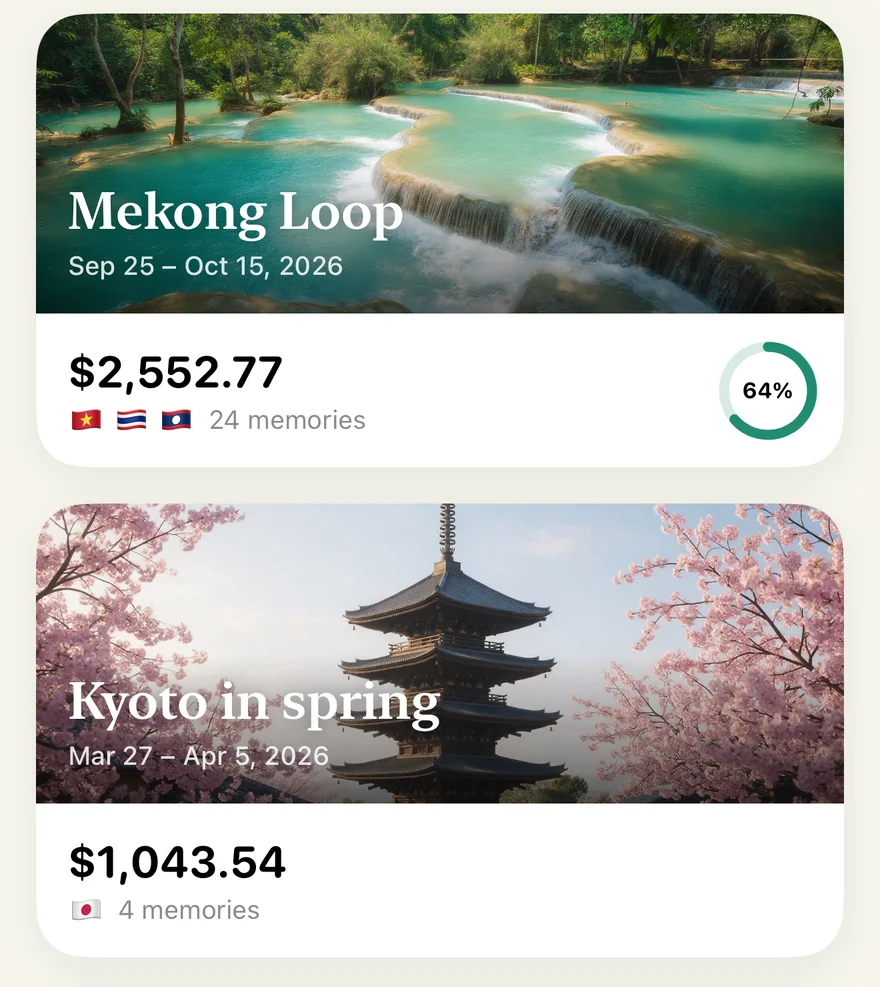
Souvenir is free on the App Store for iPhone and on Google Play for Android 8 and later.
Trip export questions
Can I still export a tricount to CSV or PDF?
Not from the app. As of 3 October 2026, Tricount’s help center lists CSV and PDF export among the Premium features no longer available since its rebuilt app, and suggests contacting bunq support for a CSV.
Can I export a Splitwise group for free?
Splitwise’s help center describes an Export Spreadsheet option for any group or friendship on the website and an Export button in the apps, and does not list it as a Pro feature (checked 3 October 2026).
Which columns should a trip expense CSV have?
Date, type, description, the amount and currency paid, the amount in your home currency and the rate used, plus category, who paid and each person’s share. Keep ATM withdrawals, exchanges and settlement payments as their own types so they are not counted as spending.
Does Souvenir’s export show who owes whom?
No. The CSV lists every entry and the trip book tells the trip day by day, but per-person shares and the settle-up plan stay in the People tab of the app.
Use the method
Try it with Souvenir
Log travel expenses in any currency at that day’s rate, track ATM cash in cash pockets, split with friends, settle up in fewer payments, keep the journey.
See everything Souvenir does →